Showing posts with label BLOGGER HELP. Show all posts

Thursday, 20 August 2009

BLOGGER DIRECTORIES-INCREASE TRAFFIC

How do you attract more readers and visitors to your Blog? To make your Blog more visible, the solution lies in submitting your Blog URL or RSS Feed to as many good Blog directories as possible. There are hundreds of websites touting themselves as blog search engines, blog directory hosts, feed aggregators, and traffic exchanges. A couple of the website creators are out to make a quick buck, selling their sites and member database on eBay the moment they attract sufficient traffic.

Over the past few weeks, I have submitted this Blog and RSS feed to many of these Blog directories for free. The first submissions were of course to Google and Yahoo; if you have not submitted your Blog URL to them, you may read the earlier articles on submitting sitemap to Google and submitting sitemap to Yahoo. At the same time, submit the Blogger Sitemap to MSN and Ask.com too.


Although my blog is only about 2 months' old at the time of this writing, if I were to enter my blog title “tips for new bloggers” into Google search, I am able to see it appearing at the top of the search results. Many of the other results are those of the blog directories in which this blog was listed. Listing in directories therefore helps in promoting your blog.

Before you proceed to submit your site to these directories, my personal advice is that you create a free web-based email account solely for this purpose. Should the directory hosts decide to sell their sites and database in future, your present email account would not be compromised. This is also to prevent flooding of your personal email with updates sent to you by the many directory administrators.

The aim of this article is to relate to you my experience in those free blog directories that I have tried submitting to. While I appreciate comments on these, please refrain from posting suggestions of new blog directory sites. A number of them may be fly-by-nights and I will not recommend them unless I have personally used them. Others may have specific requirements such as blogs having to be older than 6 months, or blogs covering specific news contents.

Different directories have different forms to fill when submitting your blog. Their instructions are usually easy to follow. However, you may want to note the following:-

1. Some directories require you to register before adding your Blog. While most of them allow you to submit more than one Blog, some may require you to use a different login name for each Blog. What I did in these situations was to create different login names but using the same email address.

2. If you are asked for the RSS Feed or your Feed URL, check that under your Settings -> Site Feed, the “Allow Blog Feed” shows either “Full” or “Short.” Do not choose “None.” Your Feed URL is yourblogURL/feeds/posts/default or yourblogURL/feeds/posts/default?alt=rss where yourblogURL is the URL of your Blog beginning with http:// Do not type in “www” for Blogger blogs. For example, our Atom Feed URL is http://tips-for-new-bloggers.blogspot.com/feeds/posts/default You can test it by typing your feed address into a web browser and view. If you have an external Feed address like a Feedburner Feed address, you may submit that too. I shall go into the details of Feed and Feed directories in a separate article.

3. Where you are to create a picture, banner, or link button to represent your blog, you can use Google's Picasa or any image editing software to create a new picture, or resize a current one to the required dimensions. Normally, you are required to upload it onto a free image host or server and provide the URL of your banner or picture. You can read about using free hosts like Google Page Creator and Google Groups. We also have a rather comprehensive list of free Image Hosts and File Hosting Services in our article on Manage Blogger Image Storage Space. Check out those sites and choose one that is fast, reliable and enables hotlinking to the uploaded files.

4. The “Reciprocal Link URL” is the main page where you will be putting a link to their blog directory. More likely than not, this will be the URL of your Blog.

5. The “meta keywords” or “tags” are keywords that represent your blog's content. Similarly “meta description” is a short few sentences describing your blog. Basically, “meta” tags provide information about your Blog for search engines to identify and match.

As the directory list is long, the article will be split into several parts, and updated as and when I try out the sites. Some sites track the number of the visitors to your blog. You may see voting gateways, which basically give visitors a chance to vote for your blog if they wish to. If they do not want to vote, there is always an option for them to enter the site without voting. Have a look at the directory sites and submit your blog to those you like.

Traffic Exchange Sites

A number of traffic exchange sites have blog directories which can include links to your blog.

Blog Directories

Technorati Technorati

They supposedly track 75.2 million blogs. Quite naturally, you would want your blog to be one of them. Register with them and submit your blog. Follow their instructions to claim your blog. They will provide you with statistics like the number of blogs that link to you. You can also invite other members to favorite your blog.

Wikablog Wikablog

If you are familiar with Wikipedia, this is the equivalent for blogs. It faces the same problems as Wikipedia i.e., while it is easy to list your blog, it is equally easy for others to edit your listing. Nevertheless, for a new blogger, this is one of the fastest way to have your blog appear in a directory. [Update: This site has been down for quite a while and link is therefore removed.]

Fuel My Blog Fuel My Blog

This is an interesting directory. Unlike the usual text-based blog directories, this site goes by images that you create to represent your blog. When your visitors click a link on your site that says Fuel My Blog!, your image will move up the ranks and appear on the front page, making it more visible to directory viewers.

Blogtoplist Top Blogs

A blog directory listing that is sorted by the number of unique visitors to your blog. Your visitors can also cast a Vote to increase your ranking. The scores are reset every week to allow new bloggers like us a chance to be placed among the top.

Topblogsites

Here, you are ranked by unique hits based on the Votes you receive from your visitors. Many of the comments posted on the directory site are spam comments, and if you can disable comments, you might want to do that. [Update: This site has been down for quite a while and link is therefore removed.]

Mybloggingarea Mybloggingarea

Another directory that ranks you based on the Votes and the number of unique visitors to your site.

Topblogarea Topblogarea

A blog directory that tracks unique visitors. Unlike the earlier ones, visitors do not vote at this directory.

Blogflare

This is a simple, nice blog directory that tracks your unique visitors and pageviews. [Update: This site has been down for quite a while and link is therefore removed.]

Topblogging Topblogging

Here, you are ranked based on unique visitors. Although there is a count for votes in, somehow the code provided by them did not track this vote count.

Blogroll Blogroll

I joined this directory only about a week ago. A simple directory that monitors the Votes and unique hits.

Worldtopblogs World Top Blogs

Ranking is by the Votes cast by the visitors to your blog.

Topbloglists Topbloglists

There is a voting gateway for your visitors but ranking is based on unique pageviews.


For more visibility, you may want to submit your Blog to Feed Directories and ping your Blog every time your contents are updated. Also, submit your Blog to the various Search Engines for maximum exposure.

While you are looking at blog directories, you may also want to consider earning money while you are surfing the net. AGLOCO seems to have a nice scheme for you which you may want to take a look. You may also want to consider having AuctionAds to display an eBay auction widget which is compatible with AdSense and other ad systems. No harm trying it since it might give you an extra income.

read more "BLOGGER DIRECTORIES-INCREASE TRAFFIC"

Sunday, 16 August 2009

Make Blog Private and Unsearchable

Many people write blogs to share their thoughts with everybody and anybody. However, you may also use your Blog as an online diary, penning very personal and private thoughts. Like all diaries, you can either allow a select few persons to view the Blog or allow no one but yourself the right to view it. Also, you may not want it to be indexed by search engines, so that people searching for it on the net will not find it in the search results.

This article lets you know how to create private Blogs. If your intentions are the exact opposite, and you want to publicize your Blog to the whole world, follow our other guides to submit your Blog to Blog Directories, Google, Yahoo and Feed Directories.

First the caveat. These guidelines will only show you how to make your Blogger blog as private as you can get. As we shall explain, there is no guarantee that search engine spiders will never find your Blog because any site that is available on the net will be crawled by search engines. What we can do is to minimize that possibility.

Note that these steps are to be taken BEFORE you create the blog. If you already have an existing Blog, it has in all likelihood been indexed. These tips will at best prevent future contents from being seen.

Title and Blog URL

Do not want people to associate that Blog to you? When you create a new Blog, select a Blog URL and Title carefully; choose words that have no bearing or relation to you or what you do. After the Blog is created, DO NOT post. Post only after you have completed the following steps.

Permission

We start with the most crucial and essential step. Blogger has made it easy for you to create private Blogs. When you are logged in, go to Settings -> Permissions. You can restrict your Blog Readers to only people you choose or only the blog authors.

People who enter the Blog URL into their browsers can still see the Blog Title but will be prompted to enter their Google account particulars and password. If they are not given the rights to view the Blog, a message will be shown: “It doesn't look like you have been invited to read this blog. If you think this is a mistake, you might want to contact the blog author and request an invitation.”

While the contents cannot be seen, people do know that this Blog URL with that Blog Title exist and it is a private blog. As we had mentioned, if you don't want anybody to know this Blog is yours, it is important to have a Blog URL and Title that are not obviously connected to you.

Listing on Blogger.com

These are the further steps to take, just to be sure. Under Settings -> Basic, you can see a “Add your Blog to our listings?” option. Choose “No”. Click “Save Settings” at the bottom. This will do three things –

i) Your Blog will not appear when people search Blogger.com.

ii) This Blog will not be shown in the Blog List on your Profle page.

iii) The Blogger homepage showcases a list of recently updated blogs but this Blog will not be shown.

Ping Setting

Go to Settings -> Publishing and under the “Send Ping” option, choose “No”. Save the Setting. Whenever a Blog is updated, Google will notify some of the tracking services of the updates. If your Blog is private, there is no reason why these services ought to know of your Blog updates.

Site Feed

Your Blog contents can be read through your Site's Atom and RSS Feeds. People can catch up on news and articles by subscribing to these Feeds and viewing the material using their Feed readers. If you do not want your contents to be read or syndicated, go to Settings -> Site Feed and to the question “Allow Blog Feed?” select “None” and click “Save Settings”.

Meta Tag

Now that we have altered the settings for the Blog, we can add a further meta tag into our template to tell search engines not to index the site. Click Template ->Edit HTML and you can see the source code. Somewhere at the top, just below <head>, insert this line (shown in red):-


<head>
<meta name="robots" content="noindex,nofollow" />

Leave this tag there. Search engine robots which visit your site will not index the Blog pages and contents.

Profile

We thought we should cover this for completeness. In the top right corner of your Dashboard, you can go to the “Edit Profile” page. Under “Show my blogs”, if you see a blog that you do not want people to know about, remove it from the listing. People who view your Profile will not know about the Blog. You can also choose not to share information about your Profile by not ticking the box next to “Share my profile”.

External Links

The steps outlined above are within your control but this one is not. It is also the reason why we said we can only minimize but not eliminate the possibility that people know of your Blog. Anybody can link to your Blog URL since it is a valid URL. If your friends happen to know about your Blog and write a post mentioning your Blog or linking to your Blog, there will be an external link to your Blog. Whatever they write about it will be public knowledge. Hence, to have an online diary that only you know about, remember that a secret shared by two persons is no longer a secret.
read more "Make Blog Private and Unsearchable"

Sticky Posts in Blogger

In all Blog platforms, new posts are always shown first and older posts are archived. With a simple trick, we can have this earlier post remain on the Home page, above all the new posts.

Create a Page Element Method

One recommended way to have a piece of writing permanently on top of the Blog Posts is to work it into the template by creating a Page Element.

1. Follow our article in Add Page Element to Blogger Header and Blog Posts. Enable the “Add a Page Element” function in the Blog Posts and if you'd like, the space between the Header and the Blog Posts. This is an interesting location, because it is right after the Header and yet does not follow the style settings of the Header. For people who want to insert a Horizontal Menu and Navigation Bar, this might be an ideal location. Once you have done that, you should be able to add new elements above the Blog Posts or right underneath the Header.

2. The second step is to create the Post. Login, go to “Posting” and create a New Post under the “Compose” mode. If you don't see a “Compose” mode, go to Settings -> Basic and at the bottom, to the question “Show Compose Mode for all your blogs?” choose “Yes” and save the settings. Type your Post contents, upload your pictures, create your links, etc. While you don't have to insert the labels, put in the Title of the article within the contents. Make the title large, bold or change the font color. Preview the post and if you are satisfied with it, you can save the draft Post and go to the next step. [Note: To check the Post Title font-size and color code settings, go to Template -> Edit HTML and look for .post h3{ You would be able to see the font-size, font-weight (if any) and color. Apply the same style to the Title that you have typed in the contents of your draft Post.]

3. Click to view the post under the “Edit HTML” mode.


4. There are some things you must do. If in your Settings -> Formatting -> Convert line breaks you have chosen “Yes”, whenever you press the “Enter” or “Return” key on your keyboard, the Post Editor will convert that into the HTML tag <br/>. We must now enter these tags into the HTML of the draft Post. Go to your draft Post under the “Edit HTML” mode.

Example 1:

At the places where you press an “Enter” key to create a line break, add the HTML tags as follows:-

Line One <br/>
Line Two

Example 2:

Between each new paragraph, add this HTML tag:-

Paragraph One <br/><br/>
Paragraph Two

Example 3:

You can also add this instead:-

Paragraph One <p>
Paragraph Two </p>

5. Once these are added to the Post, we can now block copy the entire chunk of the draft Post HTML code. Go to Template -> Page Elements -> Add a Page Element in the Blog Posts section and choose “HTML/JavaScript”. Paste the entire draft Post HTML code and save. View your Home page, and you will see the Sticky Post permanently displayed above the Blog Posts.

6. Finally, we can delete the draft Post. If you have uploaded pictures, you will be asked whether you want the pictures deleted. Since you are using these pictures in your Sticky Post, uncheck the box to keep the pictures in your Picasa Web Album.

Change the Post Date Method

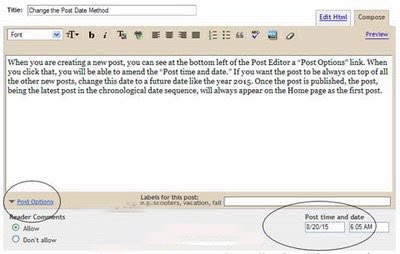
When you are creating a new post, you can see at the bottom left of the Post Editor a “Post Options” link. When you click that, you will be able to amend the “Post time and date.” If you want the post to be always on top of all the other new posts, change this date to a future date like the year 2015. Once the post is published, the post, being the latest post in the reverse chronological date order, will always appear on the Home page as the first post.


Important Notes:

i) In the new Blogger platform, the URL of Posts follow the month and year that are specified in the “Post month and date” option. In our example, we specified the month as August and the year as 2015. The Post URL will be http://BLOG URL/2015/08/TITLE.html. This URL will remain unchanged even if you edit the post and alter the date. Good for us. It means that we can change the date of an earlier post without affecting the backlinks to that post. People who linked to that URL will not have to change the link address.

ii) You can therefore alter an existing post in the same manner. Edit the Post. Change the year to a much later year and the post will always appear on your Home page.

iii) The other point to note is that when the year 2015 arrives, you may have to alter the post date yet again to another later date. Who knows, perhaps by then you may not want that post to appear on your Home Page anymore.

iv) If you want a recent post to be stored somewhere at the end of your archive list, and never to appear in the list of recent posts, use the same method but change the date to an earlier date, a year like 1950.
read more "Sticky Posts in Blogger"

Images not shown in Internet Explorer

Sometimes, the photos, images, pictures or graphics do not show or display in a website in Internet Explorer (“IE”) browser or an email in MS Outlook Express. Instead, where the pictures ought to be, there is a Red X or a placeholder.

Images not shown in Internet Explorer

Several factors could have caused this problem of images not being displayed in IE. In this Help guide, we'll look at these reasons and the solutions to show images in IE. Some of the possible causes may only be resolved by the webmaster. If you are an owner of a Blog or a webmaster, these tips might be useful to note when you are uploading images onto your Blog or webpage.

1. Image type not supported by IE

When you see a red X or placeholder, right-click on it to view the “Properties” of the image. Look at the image “Type” and “Address (URL”). IE supports images with .art, .avi, .bmp, .emf, .gif, .jpeg, .jpg, .mov, .mpeg, .mpg, .png, .wmf, and .xbm extensions. As a webmaster, if you have to put images on your website, try to stick to the usual image formats or have alternative images in these formats.

2. “Show Pictures” option in IE not selected

If you are using IE 7, under Tools -> Internet Options -> Advanced tab, there is an option called “Show pictures” under the “Multimedia” heading. Select this option and press OK to save the change. In other IE versions, the option may fall under a different heading.

3. Scripts disabled in IE

Webmasters may use Active scripts, Scriptlets, Java applet, ActiveX control, or cookies to display the images on their sites. If the security setting in IE browser is set to “High”, these features may be blocked. To enable them, go to Tools -> Internet Options -> Security tab. View the “Internet” zone and under “Security level for this zone” change it to “Medium” or “Medium-high”. You can also reset the zone to “Default” level. Likewise, under Tools -> Internet Options -> Privacy tab where you define the cookie settings, you may set it to “Default” level. Click OK to save.

4. Scripts disabled by Firewall

Other than IE, the configurations in your Firewall program (Norton Personal Firewall, Zonealarm, McAfee, BitDefender, etc.) may have disabled some of these scripts. View the help file of the program you are using and follow their instructions to enable some of these scripts. For this reason, webmasters should avoid using too many scripts for the main contents of the sites. Consider adding text using <noscript> tags to cater to those who have scripts disabled.

5. Web bugs

Be careful when you are configuring the above settings. The web pages you view or emails you receive may sometimes contain hidden web bugs. These are usually small little graphics 1px by 1px that track user statistics like location, usage, pages visited, or whether an email has been read. This is even used in organizations and companies to find out how many times a message is forwarded or read by the staff. They do not pose major threats, but there are those who do not like this infringement of privacy. Take a stand and configure your security and privacy settings accordingly.

6. Images blocked in Outlook Express

We touch briefly on the problem of images not displayed in Outlook Express email program. When you are in Outlook Express, go to Tools -> Options -> Security and you'll see a “Download Images” configuration. If you want to view images in your email, do not tick the “Block images and other external content in HTML e-mail” option. Click OK and save the change. You should now be able to view images in Outlook and not see the red X symbol.

7. Images not sent in Outlook Express

Also, if you are sending email with images, you could have disabled these images in the configuration. Those receiving your email will only see the red X or placeholders rather than the images. The solution to this is to go to your Outlook Express Tools -> Options -> Send tab. The “Mail Sending Format” should be “HTML” and not “Plain Text”. Click the “HTML Settings” button and check the box next to “Send pictures with messages.” Click OK to save.

8. Character Set not recognized by IE

This sounds rather technical. In layman terms, the browser interprets the code page or encoding of the web page. If your IE browser does not recognize this character set, or if a file in your browser software is corrupted or missing, the images may not be displayed when viewing the web page. For instance, the web page may be in a foreign language. If so, see that this language has been added to the browser settings. In IE, go to Tools -> Internet Options -> General. Under “Appearance” there is a “Languages” button. (In other versions of IE, the Language option may be under a different heading.) Add the languages that you would use to read the web page and click OK to save. If you are still unable to view the page, it is possible that a file or registry key is corrupted or missing. To resolve this, you may follow the Microsoft Help guide on your desktop to restore or repair your Windows software.

9. Image Server is down

Since free blogging platforms including Blogger.com have limits on the amount of storage space taken up by the Blog photos, images and graphics, it is worth considering hosting these images on an external server and linking to them from your Blog. We wrote about using free hosts like Google Page Creator and Google Groups. These too have limits on space and bandwidth. There is a comprehensive list of free Image Hosts and File Hosting Services in our article on Manage Blogger Image Storage Space which may provide a bigger storage space. All servers, even Blogger.com, can have downtimes. When these image hosts are busy, undergoing maintenance, temporarily suspended, offline, or when the download bandwidth has been exceeded, the images linked to the Blog will not be displayed. The problem could be temporary, and should you need to see these images on a particular Blog, revisit the Blog an hour or so later.

10. Image links are broken or dead

Since the images are hosted on another platform and linked, there could be instances when the webmasters typed a wrong URL, placed the " at the wrong places or omitted the closing image tags. The image HTML code and attributes are discussed in Hyperlinks and Image Links. The image links could be broken or dead when webmasters delete the images from the server or switch image servers without updating the image links. It is also possible that the image is not hotlinked. By this we mean that when the image is stored on the image server, the link given is not a direct link to the image, but a page containing the image and other contents. Hotlinking takes up bandwidth and some image servers do not provide that service. If such URL is used in the image HTML code, the image will not show.

11. Cache not cleared

The Browser cache stores web page content of the sites you have visited on your hard disk. These are the Temporary Internet Files which supposedly speed up the page download when you revisit a site since some of the contents are already stored. However, these files can comprise cookies and JavaScripts too. Make it a habit to clear the cache regularly to remove these files. In IE, go to Tools -> Internet Options -> General and under “Browsing history” click “Delete” button. Delete all the Files and offline content. These are temporary files that can be removed. If you are unable to view images, sometimes deleting these Temporary Internet Files may solve the problem.


read more "Images not shown in Internet Explorer"

Feedburner - FeedCount Chicklet Text

Feedburner is a very popular feed aggregator and provides a host of services which you can tap on to publicize and promote your Blog. One widely used service is their FeedCount Chicklet which displays your Blog Feed's circulation statistics. The chicklet can be static (displaying the number of “readers”) or animated (showing the number of “readers” via feed). Although you can change the background and text color for the graphic display, there is no option for you to change the text. This hack will explain how to change and personalize the FeedCount Chicklet text as well as to change the animation settings so that it rolls the text more than once.

For those who have yet to sign up for a Feedburner account, consider doing so right away. Now that it is under the Google family, there is an easy way for you to channel all your Blogger feed subscribers to Feedburner. Login to Blogger, and under Settings -> Site Feed, enter your Blog's Feedburner Feed address into the box beside “Post Feed Redirect URL.” Readers who click the “Subscribe to: Posts (Atom)” link or the RSS icon in their browsers will be redirected to your Feedburner Feed.

FeedCount Chicklet

When you are logged into Feedburner account and are viewing your Feed details, click the Publicize -> FeedCount tab. This is where you can generate a code to display a chicklet in your Blog which shows the subscriber count. Whether or not you already have a high number of subscribers doesn't really matter. A nice chicklet can draw readers' attention and make it easy for them to click the Feed link.

Choose the custom colors of the body and text and click “Activate”. You will be given a HTML code for the Chicklet. We have to edit this code. Open MS Notepad (usually found under All Programs -> Accessories in Microsoft Windows) or a word processor program. Copy and paste this code.

Static FeedCount HTML Code

The static FeedCount code will look something like this:-


<p><a href="http://feeds.feedburner.com/ TipsForNewBloggers"><img src="http://feeds.feedburner.com/~fc/ TipsForNewBloggers?bg=99CCFF&amp;fg=444444& anim=0" height="26" width="88" style="border:0" alt="" /></a></p>

This is the standard FeedCount chicklet you see:-

Feedburner - FeedCount Chicklet Text

To change the word “readers” to some other text such as “Viewers”, insert this other code (shown in red). You can change the word “Viewers” to other text, but because of the space constraint, keep it to no more than 7 characters.

<p><a href="http://feeds.feedburner.com/ TipsForNewBloggers"><img src="http://feeds.feedburner.com/~fc/ TipsForNewBloggers?bg=99CCFF&amp;fg=444444& anim=0&amp;label=Viewers" height="26" width="88" style="border:0" alt="" /></a></p>

The FeedCount chicklet now looks like this:-

Feedburner - FeedCount Chicklet Text

You can change the text to capital letters or include characters, e.g., “*FANS*”, and your new FeedCount Chicklet will look like this:-

Feedburner - FeedCount Chicklet Text

Animated FeedCount HTML Code

The animated FeedCount code is rather similar except that the animation value is set as “1” instead of “0”.

<p><a href="http://feeds.feedburner.com/ TipsForNewBloggers"><img src="http://feeds.feedburner.com/~fc/ TipsForNewBloggers?bg=99CCFF&amp;fg=444444& anim=1" height="26" width="88" style="border:0" alt="" /></a></p>

When the page is loaded, viewers will see a one-time rolling text of number of “readers” via feed.

Tips for New Bloggers

The word “readers” can be changed to other text like “Members” by inserting the code (shown in red):-

<p><a href="http://feeds.feedburner.com/ TipsForNewBloggers"><img src="http://feeds.feedburner.com/~fc/ TipsForNewBloggers?bg=99CCFF&amp;fg=444444& anim=1&amp;label=Members" height="26" width="88" style="border:0" alt="" /></a></p>
This is the new FeedCount Chicklet you will see. Insert the relevant text that suits your Blog.

Tips for New Bloggers

Animation to play more than once

Other than the change in text, you can also set the animation to play more than once by changing the anim value to something greater than 1. Since readers are unlikely to stay on a page for too long, it need not be too big a value. When the page is refreshed, the animation count will start all over again.

<p><a href="http://feeds.feedburner.com/ TipsForNewBloggers"><img src="http://feeds.feedburner.com/~fc/ TipsForNewBloggers?bg=99CCFF&amp;fg=444444& anim=50&amp;label=Friends" height="26" width="88" style="border:0" alt="" /></a></p>
Our animated FeedCount Chicklet will now look like this:-

Tips for New Bloggers

read more "Feedburner - FeedCount Chicklet Text"

Difference - HTML and XHTML

When inserting codes into the Blogger template, page element, or blog post, you may have seen error messages that the code could not be parsed, was not well-formed, was broken, or that the elements were not closed properly. These errors can be corrected if you understand the rules that must be adhered to in XHTML documents. Blogger templates use the XHTML 1.0 Strict Document Type. In this article, we shall explain some of the XHTML syntax or rules, so that you may troubleshoot and resolve the problems if these error messages should occur.

XML, HTML and XHTML

We shall keep this short. Just so as you understand what we said about document type, view the Page Source or Source of your Blogger blog. You should see this document type declaration at the very top:-


<!DOCTYPE html PUBLIC "-//W3C//DTD XHTML 1.0 Strict//EN" "http://www.w3.org/TR/xhtml1/DTD/xhtml1-strict.dtd">

The terms – XML, HTML and XHTML - refer to the markup language used to write the web pages. Many of us would have heard of HTML (Hypertext Markup Language), invented by Tim Berners-Lee, and used since the early days of internet. XML (Extensible Markup Language) is a meta-language, used to create other markup languages. The traditional HTML was later recast to use the rules of XML and that resulted in a new XML application, called XHTML (Extensible Hypertext Markup Language). Because XHTML rules are strict and unforgiving, not conforming to them when attempting to modify the template would result in error messages. So, what are these rules that Bloggers like us should take note of?

Basic Rules of XHTML

1. Codes to be in lowercase

Since XML is case sensitive, all the element keywords and attribute names used in XHTML should be in the lowercase. For example, the template code is not this:-

<TITLE>Tips for New Bloggers</TITLE>

but this:-

<title>Tips for New Bloggers</title>

If you have noticed, the elements and attribute names between the lesser than (<) and greater than (>) signs have to be in the lowercase. However, the value, which in this case is “Tips for New Bloggers”, can be in the uppercase, lowercase, or mixed case.

2. Attribute values to be in quotation marks

All the attribute values have to be enclosed either in single or double quotation marks. The following examples are not accepted by XHTML:-

<div id=header-wrapper>

<a href=http://tips-for-new-bloggers.blogspot.com>Text Link</a>

<img src=photo.jpg/>

<table width=200 border=0 cellpadding=2>

Instead, they should be written as such:-

<div id='header-wrapper'>

<a href="http://tips-for-new-bloggers.blogspot.com">Text Link</a>

<img src="photo.jpg"/>

<table width="200" border="0" cellpadding="2">

3. Container elements must have closing tags

This is not correct:-

<p>A paragraph.

In XHTML, there must be a closing tag with a forward slash (/) at the end:-

<p>A paragraph.</p>

Examples of the many non-empty elements that have opening and corresponding closing tags are:-

<ul> ... </ul>
<li> ... </li>
<table> ... </table>
<h2> ... </h2>
<div> ... </div>
<span> ... </span>
<dt> ... </dt>
<dd> ... </dd>
<a href> ... </a>

4. Standalone elements to be closed

Some of the elements are empty or standalone. They do not have associated closing tags. Common examples are:-

<br>
<img>
<input>
<frame>
<hr>
<meta>
<link>

Nonetheless, in XHTML, these elements must be terminated or closed. There are two ways to do that. One way to terminate the element is to put a forward slash (/) at the end like this:-

<br/>
<img/>
<input/>
<frame/>
<hr/>
<meta/>
<link/>

The second way is to add a corresponding closing tag like this:-

<br> ... </br>
<img> ... </img>
<input> ... </input>
<frame> ... </frame>
<hr> ... </hr>
<meta> ... </meta>
<link> ... </link>

5. Elements to be properly nested

This means that elements must be closed in the reverse order. For example, this code is not accepted in XHTML:-

<form><table> ... </form></table>

It is improperly nested because the form was created first followed by the table. To close them in the proper order, the table must be closed before the form, like this:-

<form><table> ... </table></form>

6. Document to have only one root element

In the XHTML document, you will see that except for the document type declaration, all the codes are nested between <html> and </html>. This is the root element and all other elements or sub elements are in between. The document structure will look like this:-

<html>
<head> ... </head>
<body> ... </body>
</html>

7. Attribute minimization is not allowed

In XHTML, all attributes should be in the form name="value". Even if the value is the same as the name, it cannot be minimized to one word.

<textarea readonly>Hyperlink Code</textarea>

but this:-

<textarea readonly="readonly">Hyperlink Code</textarea>

XHTML Character Entities

Quite a number of readers had asked why they were unable to display HTML codes in their blog posts or why their codes were not well-parsed when inserted into the template. If you have noticed by now, the codes are wrapped in the lesser than (<) and greater than (>) signs. The moment these are posted, they will be interpreted as codes and will trigger an action by the browser. Should you want to display these as part of the text, use their character entities instead.

"&quot;
&&amp;
<&lt;
>&gt;

The next time you see an error message to the effect that the code is not well formed, not well parsed, not properly closed, etc., take a look at this guide, troubleshoot the problem and try out the possible solutions.
read more "Difference - HTML and XHTML"

HTML Color Code Chart

Changing background and border colors will add a special identity to your site.

Under the Template tab, you see “Fonts and Colors”.  However the available colors on the screen are limited. If you cannot find the color you want, you may want to copy the appropriate hex codes of the colors below, and paste them into the “color hex code” box and press Enter. Try out different combinations, and change them as and when you like.


HTML Color Code Chart


COLOR NAMECODECOLOR
Black#000000
Grey0#150517
Grey18#250517
Grey21#2B1B17
Grey23#302217
Grey24#302226
Grey25#342826
Grey26#34282C
Grey27#382D2C
Grey28#3b3131
Grey29#3E3535
Grey30#413839
Grey31#41383C
Grey32#463E3F
Grey34#4A4344
Grey35#4C4646
Grey36#4E4848
Grey37#504A4B
Grey38#544E4F
Grey39#565051
Grey40#595454
Grey41#5C5858
Grey42#5F5A59
Grey43#625D5D
Grey44#646060
Grey45#666362
Grey46#696565
Grey47#6D6968
Grey48#6E6A6B
Grey49#726E6D
Grey50#747170
Grey#736F6E
Slate Grey4#616D7E
Slate Grey#657383
Light Steel Blue4#646D7E
Light Slate Grey#6D7B8D
Cadet Blue4#4C787E
Dark Slate Grey4#4C7D7E
Thistle4#806D7E
Medium Slate Blue#5E5A80
Medium Purple4#4E387E
Midnight Blue#151B54
Dark Slate Blue#2B3856
Dark Slate Grey#25383C
Dim Grey#463E41
Cornflower Blue#151B8D
Royal Blue4#15317E
Slate Blue4#342D7E
Royal Blue#2B60DE
Royal Blue1#306EFF
Royal Blue2#2B65EC
Royal Blue3#2554C7
Deep Sky Blue#3BB9FF
Deep Sky Blue2#38ACEC
Slate Blue#357EC7
Deep Sky Blue3#3090C7
Deep Sky Blue4#25587E
Dodger Blue#1589FF
Dodger Blue2#157DEC
Dodger Blue3#1569C7
Dodger Blue4#153E7E
Steel Blue4#2B547E
Steel Blue#4863A0
Slate Blue2#6960EC
Violet#8D38C9
Medium Purple3#7A5DC7
Medium Purple#8467D7
Medium Purple2#9172EC
Medium Purple1#9E7BFF
Light Steel Blue#728FCE
Steel Blue3#488AC7
Steel Blue2#56A5EC
Steel Blue1#5CB3FF
Sky Blue3#659EC7
Sky Blue4#41627E
Slate Blue#737CA1
Slate Grey3#98AFC7
Violet Red#F6358A
Violet Red2#E4317F
Deep Pink#F52887
Deep Pink2#E4287C
Deep Pink3#C12267
Deep Pink4#7D053F
Medium Violet Red#CA226B
Violet Red3#C12869
Firebrick#800517
Violet Red4#7D0541
Maroon4#7D0552
Maroon#810541
Maroon3#C12283
Maroon2#E3319D
Maroon1#F535AA
Magenta#FF00FF
Magenta1#F433FF
Magenta2#E238EC
Magenta3#C031C7
Medium Orchid#B048B5
Medium Orchid1#D462FF
Medium Orchid2#C45AEC
Medium Orchid3#A74AC7
Medium Orchid4#6A287E
Purple#8E35EF
Purple1#893BFF
Purple2#7F38EC
Purple3#6C2DC7
Purple4#461B7E
Dark Orchid4#571B7E
Dark Orchid#7D1B7E
Dark Violet#842DCE
Dark Orchid3#8B31C7
Dark Orchid2#A23BEC
Dark Orchid1#B041FF
Plum4#7E587E
Pale Violet Red#D16587
Pale Violet Red1#F778A1
Pale Violet Red2#E56E94
Pale Violet Red3#C25A7C
Pale Violet Red4#7E354D
Plum#B93B8F
Plum1#F9B7FF
Plum2#E6A9EC
Plum3#C38EC7
Thistle#D2B9D3
Thistle3#C6AEC7
Lavendar Blush2#EBDDE2
Lavendar Blush3#C8BBBE
Thistle2#E9CFEC
Thistle1#FCDFFF
Lavendar#E3E4FA
Lavendar Blush#FDEEF4
Light Steel Blue1#C6DEFF
Light Blue#ADDFFF
Light Blue1#BDEDFF
Light Cyan#E0FFFF
Slate Grey1#C2DFFF
Slate Grey2#B4CFEC
Light Steel Blue2#B7CEEC
Turquoise1#52F3FF
Cyan#00FFFF
Cyan1#57FEFF
Cyan2#50EBEC
Turquoise2#4EE2EC
Medium Turquoise#48CCCD
Turquoise#43C6DB
Dark Slate Grey1#9AFEFF
Dark Slate Grey2#8EEBEC
Dark Slate Grey3#78C7C7
Cyan3#46C7C7
Turquoise3#43BFC7
Cadet Blue3#77BFC7
Pale Turquoise3#92C7C7
Light Blue2#AFDCEC
Dark Turquoise#3B9C9C
Cyan4#307D7E
Light Sea Green#3EA99F
Light Sky Blue#82CAFA
Light Sky Blue2#A0CFEC
Light Sky Blue3#87AFC7
Sky Blue#82CAFF
Sky Blue2#B0E2FF
Light Sky Blue4#566D7E
Sky Blue#6698FF
Light Slate Blue#736AFF
Light Cyan2#CFECEC
Light Cyan3#AFC7C7
Light Cyan4#717D7D
Light Blue3#95B9C7
Light Blue4#5E767E
Pale Turquoise4#5E7D7E
Dark Sea Green4#617C58
Medium Aquamarine#348781
Medium Sea Green#306754
Sea Green#4E8975
Dark Green#254117
Sea Green4#387C44
Forest Green#4E9258
Medium Forest Green#347235
Spring Green4#347C2C
Dark Olive Green4#667C26
Chartreuse4#437C17
Green4#347C17
Medium Spring Green#348017
Spring Green#4AA02C
Lime Green#41A317
Spring Green#4AA02C
Dark Sea Green#8BB381
Dark Sea Green3#99C68E
Green3#4CC417
Chartreuse3#6CC417
Yellow Green#52D017
Spring Green3#4CC552
Sea Green3#54C571
Spring Green2#57E964
Spring Green1#5EFB6E
Sea Green2#64E986
Sea Green1#6AFB92
Dark Sea Green2#B5EAAA
Dark Sea Green1#C3FDB8
Green#00FF00
Lawn Green#87F717
Green1#5FFB17
Green2#59E817
Chartreuse2#7FE817
Chartreuse#8AFB17
Green Yellow#B1FB17
Dark Olive Green1#CCFB5D
Dark Olive Green2#BCE954
Dark Olive Green3#A0C544
Yellow#FFFF00
Yellow1#FFFC17
Khaki1#FFF380
Khaki2#EDE275
Goldenrod#EDDA74
Gold2#EAC117
Gold1#FDD017
Goldenrod1#FBB917
Goldenrod2#E9AB17
Gold#D4A017
Gold3#C7A317
Goldenrod3#C68E17
Dark Goldenrod#AF7817
Khaki#ADA96E
Khaki3#C9BE62
Khaki4#827839
Dark Goldenrod1#FBB117
Dark Goldenrod2#E8A317
Dark Goldenrod3#C58917
Sienna1#F87431
Sienna2#E66C2C
Dark Orange#F88017
Dark Orange1#F87217
Dark Orange2#E56717
Dark Orange3#C35617
Sienna3#C35817
Sienna#8A4117
Sienna4#7E3517
Indian Red4#7E2217
Dark Orange3#7E3117
Salmon4#7E3817
Dark Goldenrod4#7F5217
Gold4#806517
Goldenrod4#805817
Light Salmon4#7F462C
Chocolate#C85A17
Coral3#C34A2C
Coral2#E55B3C
Coral#F76541
Dark Salmon#E18B6B
Salmon1#F88158
Salmon2#E67451
Salmon3#C36241
Light Salmon3#C47451
Light Salmon2#E78A61
Light Salmon#F9966B
Sandy Brown#EE9A4D
Hot Pink#F660AB
Hot Pink1#F665AB
Hot Pink2#E45E9D
Hot Pink3#C25283
Hot Pink4#7D2252
Light Coral#E77471
Indian Red1#F75D59
Indian Red2#E55451
Indian Red3#C24641
Red#FF0000
Red1#F62217
Red2#E41B17
Firebrick1#F62817
Firebrick2#E42217
Firebrick3#C11B17
Pink#FAAFBE
Rosy Brown1#FBBBB9
Rosy Brown2#E8ADAA
Pink2#E7A1B0
Light Pink#FAAFBA
Light Pink1#F9A7B0
Light Pink2#E799A3
Pink3#C48793
Rosy Brown3#C5908E
Rosy Brown#B38481
Light Pink3#C48189
Rosy Brown4#7F5A58
Light Pink4#7F4E52
Pink4#7F525D
Lavendar Blush4#817679
Light Goldenrod4#817339
Lemon Chiffon4#827B60
Lemon Chiffon3#C9C299
Light Goldenrod3#C8B560
Light Golden2#ECD672
Light Goldenrod#ECD872
Light Goldenrod1#FFE87C
Lemon Chiffon2#ECE5B6
Lemon Chiffon#FFF8C6
Light Goldenrod Yellow#FAF8CC


© Tips for New Bloggers
read more "HTML Color Code Chart"

Followers

BLOGGER TRICKS © 2008 Template by Dicas Blogger.

TOPO