Blog Widgets, Gadgets and Add-ons
The free, popular, and interesting web widgets and gadgets that you can consider adding to your Blog. Widgets are elements that extract the services or content from other sites. Some of these widgets are useful, providing your readers with news, information, and reference tips. Others may be just fun and games which make your Blog a little more interesting and promote interaction among your readers. Because there are so many applications, developers and sites, this article will be split into parts and we shall update them now and then.
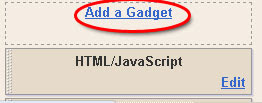
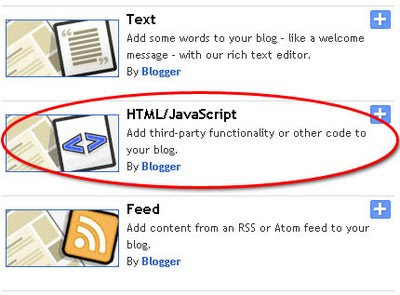
Many of the sites offer easy to install HTML or JavaScript codes. All you need to do is to copy the code and place them into your layout. For instance, if you want a widget to appear in your sidebar, login to your Dashboard, go to Template -> Page Elements and click “Add a Page Element” at the sidebar. Select “HTML/JavaScript”. Paste the code generated by the service provider and save. Every time you create a new page element, it appears at the top of all the other elements. If you want it somewhere near the bottom of the sidebar, just left-click that “Page Element”, drag and drop to the place you want. Click “Save” at the top right hand corner of the page to save the new layout.
A note of caution when adding widgets. While you may be tempted to have as many widgets as you can lay your hands on, having too many may clutter the Blog and cause slower page downloads. Also, since many of them work on JavaScripts, readers who configure their Firefox or IE browsers to block scripts may not see these features. For these reasons, we have added only a couple of widgets to let you have an idea, but have not included all the widgets listed in this article. Take your time to pick those that truly complement your Blog contents.
Google Gadgets
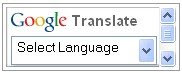
Take a look at the directory of widgets at Google Gadgets and you will instantly know what widgets are all about.

Many of the applications are created by different developers and users. There is no registration required at your end. When you have chosen one, click “Add to your webpage” and you will be asked to customize the title, width, height and border of the gadget. If the width of your sidebar is e.g., 150 px, you may want to set the gadget width to something less than that. It is alright to have a larger width, but readers will have to scroll to view the gadget in its entirety. When you are satisfied, click “Get the Code”. Copy the code and paste it into your “Page Element” described above.
Widgetbox
If you think Google Gadgets are great, you would love the directory of web widgets at Widgetbox. They provide ready installation codes for TypePad, WordPress, Blogger, MySpace and most other blogs, sidebars or websites.

Register for a free account. Search for the widgets that you like. Determine the display settings and click “Get Widget”. You can either “Get Widget Code” and paste it into your Blog layout as described above, or let them do it for you by clicking “Add to Blogger”. We prefer the first method.
If you have several widgets, you can also “Make a New Panel” under “My Widgets” and add these widgets into your panel. The advantage is that when you “Install”, you will have one code generated for the panel rather than several codes.
Snipperoo
In a similar fashion, Snipperoo has a directory of widgets that you can use. You can pick several widgets, arrange them into a panel, and the site will generate one code for you to place on your Blog. We think that configuration was much easier previously. With their new interface and a scheme to pay you for putting the widgets in your Blog, we would rather stick with Widgetbox.
In any event, if you want to have a look, register for a free account. Once you are logged in, begin by creating a “New Panel”. To the left, you will see “Get Widgets”. Add the ones you like into your Panel. Drag and drop to arrange them in the desired positions. Click “Publish” to update and generate a code.
AddThis
This is a useful service. The widget allows readers to easily bookmark your Blog, or subscribe to your feeds. It supports many feed reader as well as social bookmarking services. The design looks neat and saves up a lot of space.
Register at their AddThis site. You can either have a Bookmarking widget

or Feed widget

If you are prompted to enter your Feed URL, you could use your Blog URL with “/atom.xml” or “/rss.xml” after it. In this Blog, you will see that the Bookmarking widget has been inserted into the template such that it automatically appears after every post. To do this, go to Template -> Edit HTML and click the “Expand Widget Templates” checkbox.

Next, look for this line: -
Paste the generated Bookmarking widget code either just before or just after that. You can preview the Blog to see the difference in the position of the widget. Should you want the widget to appear on the left or right, you can align it by adding the following alignment tags to the widget code:-
Lilypie
If you have a baby, child, or are expecting one, the tickers you find at Lilypie will be nice inclusions in your Blog.

You don't need to register to use the service. Simply choose the background, select marker and input personalized text to create a ticker code. Paste the HTML code into your Page Element.
TickerFactory
This is another tracker that you can add to your Blog. Visit their TickerFactory site and choose something that you would like to track. The popular ones are weight loss progress, baby's age and anniversary countdowns. No registration is required.

Customize the ruler and ticker slider designs, copy the HTML code and paste it into your Page Element.
AuctionAds
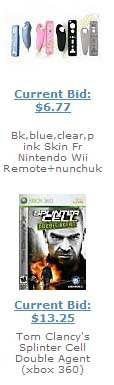
Sign up for an account at AuctionAds to display an eBay auction widget. The displays are related to the key words you assigned. According to their FAQ, their ads are compatible with AdSense and other ad systems. In short, you can have both AuctionAds and AdSense ads in your Blog. You get a commission when someone buys an item from eBay and it is an additional way to earn some revenue through your Blog.
read more "Blog Widgets, Gadgets and Add-ons"
Many of the sites offer easy to install HTML or JavaScript codes. All you need to do is to copy the code and place them into your layout. For instance, if you want a widget to appear in your sidebar, login to your Dashboard, go to Template -> Page Elements and click “Add a Page Element” at the sidebar. Select “HTML/JavaScript”. Paste the code generated by the service provider and save. Every time you create a new page element, it appears at the top of all the other elements. If you want it somewhere near the bottom of the sidebar, just left-click that “Page Element”, drag and drop to the place you want. Click “Save” at the top right hand corner of the page to save the new layout.
A note of caution when adding widgets. While you may be tempted to have as many widgets as you can lay your hands on, having too many may clutter the Blog and cause slower page downloads. Also, since many of them work on JavaScripts, readers who configure their Firefox or IE browsers to block scripts may not see these features. For these reasons, we have added only a couple of widgets to let you have an idea, but have not included all the widgets listed in this article. Take your time to pick those that truly complement your Blog contents.
Google Gadgets
Take a look at the directory of widgets at Google Gadgets and you will instantly know what widgets are all about.

Many of the applications are created by different developers and users. There is no registration required at your end. When you have chosen one, click “Add to your webpage” and you will be asked to customize the title, width, height and border of the gadget. If the width of your sidebar is e.g., 150 px, you may want to set the gadget width to something less than that. It is alright to have a larger width, but readers will have to scroll to view the gadget in its entirety. When you are satisfied, click “Get the Code”. Copy the code and paste it into your “Page Element” described above.
Widgetbox
If you think Google Gadgets are great, you would love the directory of web widgets at Widgetbox. They provide ready installation codes for TypePad, WordPress, Blogger, MySpace and most other blogs, sidebars or websites.

Register for a free account. Search for the widgets that you like. Determine the display settings and click “Get Widget”. You can either “Get Widget Code” and paste it into your Blog layout as described above, or let them do it for you by clicking “Add to Blogger”. We prefer the first method.
If you have several widgets, you can also “Make a New Panel” under “My Widgets” and add these widgets into your panel. The advantage is that when you “Install”, you will have one code generated for the panel rather than several codes.
Snipperoo
In a similar fashion, Snipperoo has a directory of widgets that you can use. You can pick several widgets, arrange them into a panel, and the site will generate one code for you to place on your Blog. We think that configuration was much easier previously. With their new interface and a scheme to pay you for putting the widgets in your Blog, we would rather stick with Widgetbox.
In any event, if you want to have a look, register for a free account. Once you are logged in, begin by creating a “New Panel”. To the left, you will see “Get Widgets”. Add the ones you like into your Panel. Drag and drop to arrange them in the desired positions. Click “Publish” to update and generate a code.
AddThis
This is a useful service. The widget allows readers to easily bookmark your Blog, or subscribe to your feeds. It supports many feed reader as well as social bookmarking services. The design looks neat and saves up a lot of space.
Register at their AddThis site. You can either have a Bookmarking widget
or Feed widget
If you are prompted to enter your Feed URL, you could use your Blog URL with “/atom.xml” or “/rss.xml” after it. In this Blog, you will see that the Bookmarking widget has been inserted into the template such that it automatically appears after every post. To do this, go to Template -> Edit HTML and click the “Expand Widget Templates” checkbox.

Next, look for this line: -
<div class='post-footer'> |
|---|
Paste the generated Bookmarking widget code either just before or just after that. You can preview the Blog to see the difference in the position of the widget. Should you want the widget to appear on the left or right, you can align it by adding the following alignment tags to the widget code:-
<div align='right'>WIDGET CODE</div> |
|---|
Lilypie
If you have a baby, child, or are expecting one, the tickers you find at Lilypie will be nice inclusions in your Blog.

You don't need to register to use the service. Simply choose the background, select marker and input personalized text to create a ticker code. Paste the HTML code into your Page Element.
TickerFactory
This is another tracker that you can add to your Blog. Visit their TickerFactory site and choose something that you would like to track. The popular ones are weight loss progress, baby's age and anniversary countdowns. No registration is required.

Customize the ruler and ticker slider designs, copy the HTML code and paste it into your Page Element.
AuctionAds

Sign up for an account at AuctionAds to display an eBay auction widget. The displays are related to the key words you assigned. According to their FAQ, their ads are compatible with AdSense and other ad systems. In short, you can have both AuctionAds and AdSense ads in your Blog. You get a commission when someone buys an item from eBay and it is an additional way to earn some revenue through your Blog.


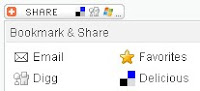 buttons makes it easy for your visitors to share your content with others. It is a good way to increase your link popularity and publicity. Their nice css dropdown icons reduces the clutter on your pages and eliminates the need to add a different button for each social bookmarking service.



 easily add a simple media player to your blog which can auto detect mp3 links and create an embedded player. This tool is very useful for especially audio,music blogs.